
Orders
Open Orders from the app menu to see who to thank for your orders.
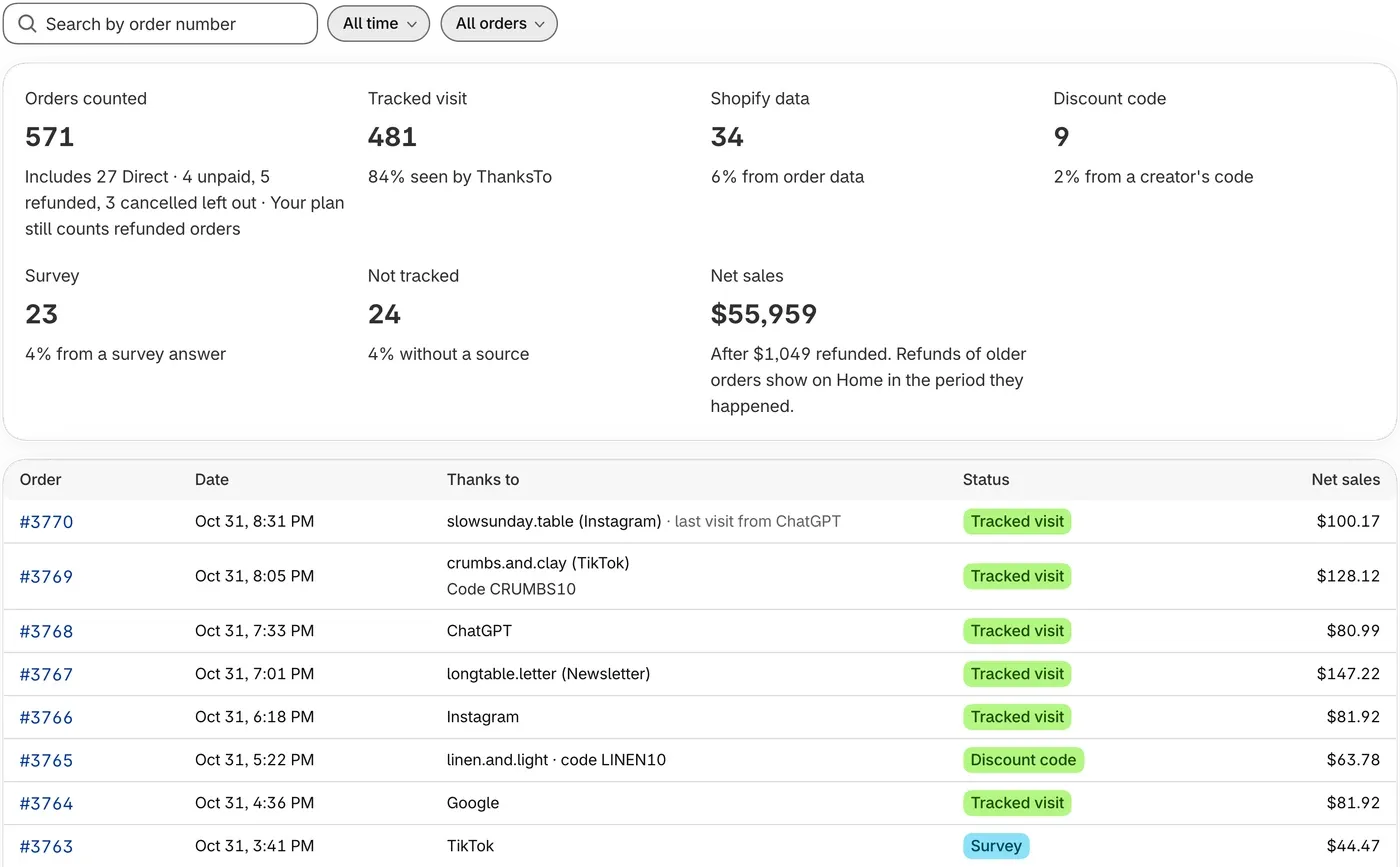
Orders that aren’t credited, such as unpaid or cancelled ones, show a status that says why. See What each status means.
Some orders can’t be credited. They show as No source with the status Not tracked, usually because the shopper declined tracking. The survey can credit some of them. The cart helper only works for shoppers who allow analytics.
Locked means the order is over your plan’s monthly limit, so you can’t open it from the list yet. See Plans and order limits.
Filter by status
Section titled “Filter by status”-
Click the All orders button above the list.
-
Choose a status, such as Credited or Not tracked. Choose All orders to see everything again.
The tiles don’t change when you pick a status.
Find one order by its number
Section titled “Find one order by its number”-
Type the number in Search by order number, then press Enter.
-
Click the order number to open it, or click Clear to go back to your list.
A search looks at every order in ThanksTo, whatever the date, status or filters.
Export your orders
Section titled “Export your orders”-
Choose a date range and a status, or search for an order number.
-
Click Export at the top of the page.
-
Wait for the message Orders exported. Your browser saves a CSV file, which spreadsheet apps can open.
The file holds every order that matches, up to 50,000 orders.
If something looks wrong
Section titled “If something looks wrong”An order is missing. Check the date range and the status filter, or search by its number. A new order can take a moment to show up.
Fix a problem has more help.