
Live view
Live view shows who is on your store right now, so you can check that tracking works.
Open Live view
Section titled “Open Live view”-
Open Analytics from the app menu.
-
Click Live view at the top of the page.
What Live view shows
Section titled “What Live view shows”The page updates every 5 seconds while it’s open on your screen.
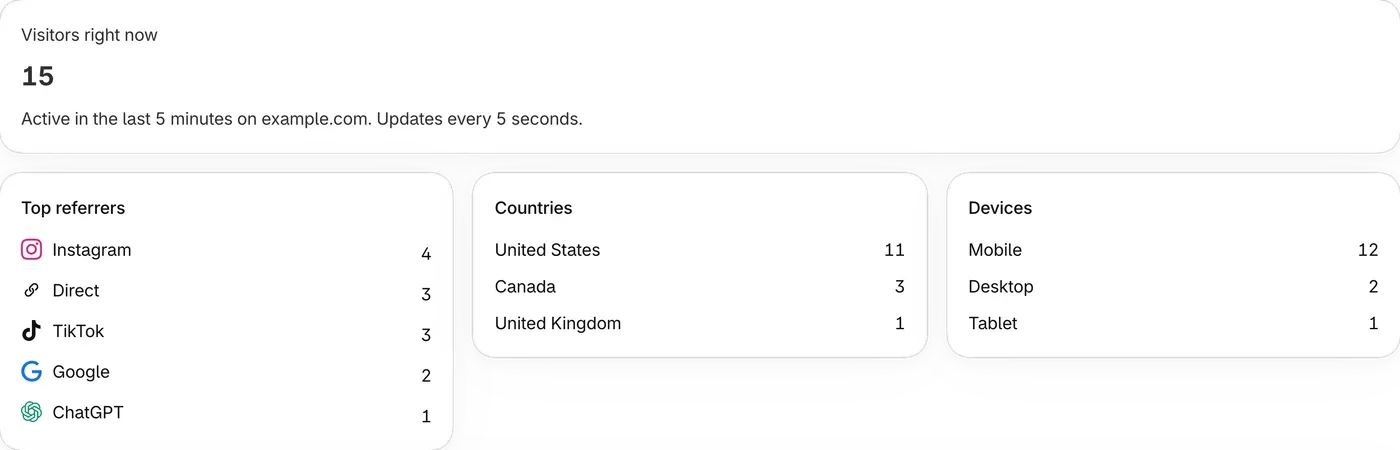
- Visitors right now is how many people were active on your store in the last 5 minutes.
- Activity in the last 30 minutes lists what happened.
add_to_cartmeans added to the cart,checkout_startedmeans started checkout, andpurchasemeans finished checkout. - Visitor is a made-up name, such as indigo panda. ThanksTo doesn’t keep shoppers’ names.
A shopper who declines tracking isn’t shown.
Check that tracking works
Section titled “Check that tracking works”-
Open your store’s address in a private window. Some browsers call this incognito.
-
Accept cookies if your store asks.
-
If your store has a password, enter it and browse a page.
-
In ThanksTo, open Live view and find your visit. A real visit shows there within moments.
Once ThanksTo has recorded a visit, the Tracking badge in Settings changes to Tracking on.
If something looks wrong
Section titled “If something looks wrong”- Your visit doesn’t show. Check that you accepted cookies and got past the store password. Turn off any ad blocker, then visit a new page and look again.
- The badge on Home says Tracking off. Click Fix tracking, then click Check again in Settings.
Fix a problem has more help if tracking stays off.