
QR codes
Every link in ThanksTo has a QR code, a square image that a phone camera can read, so you have nothing to set up. It shows when you save a new link, and you can get it again at any time.
Download a QR code
Section titled “Download a QR code”-
Open Creators and click the creator’s name.
-
In the Links table, find the link you want and click QR code.
-
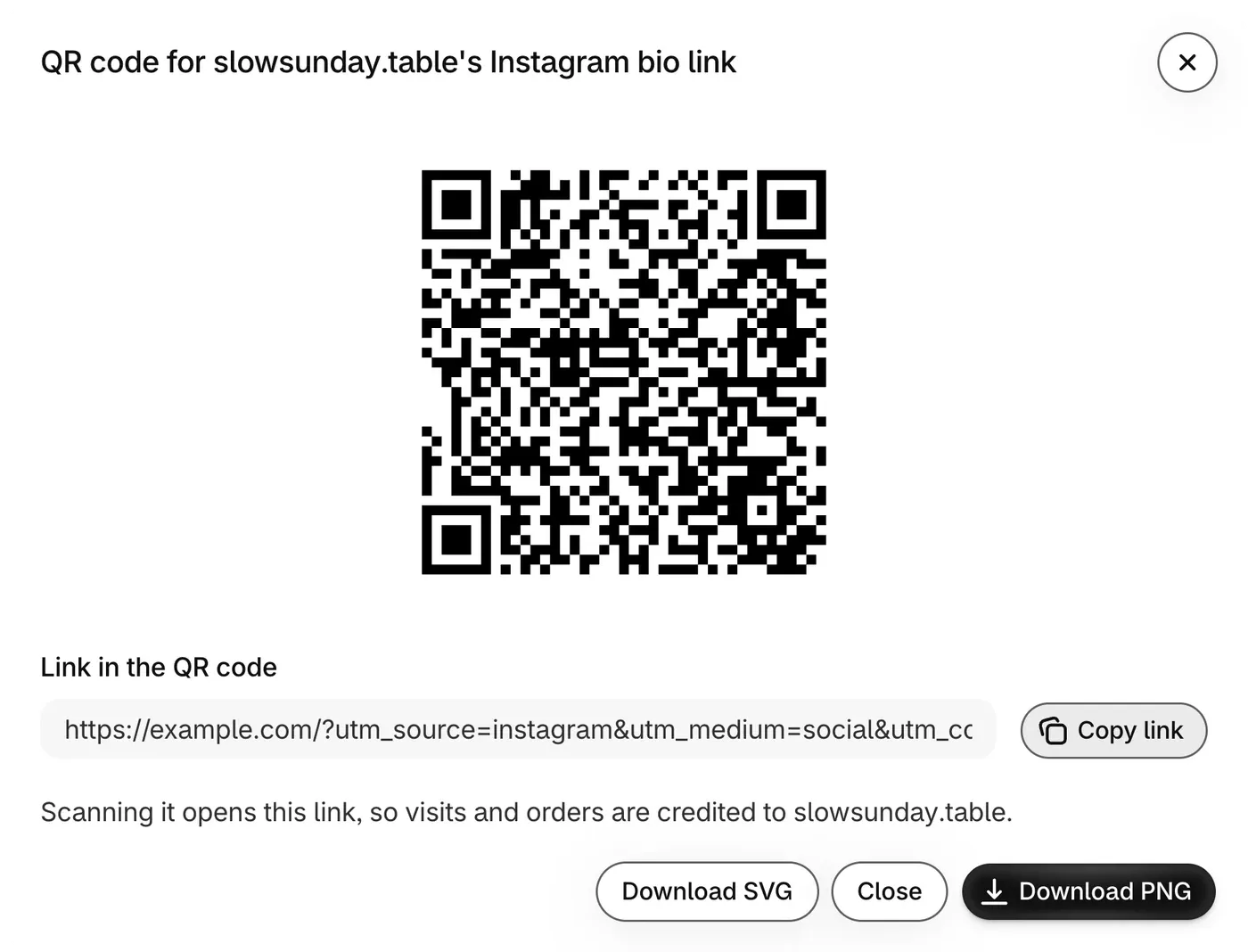
Check Link in the QR code. That’s the link the code opens.
-
Click Download PNG for screens and posts, or Download SVG for large print.
Nothing downloads on your phone? Long-press the QR code to save it.
Before you print
Section titled “Before you print”- Keep the white margin around the code. Phone cameras need it.
- Scan the code with your phone first, to check that it opens the right page.
- For a flyer, save a separate link with a Post name such as
flyer, so it gets its own row.
You can’t switch off a QR code from ThanksTo. If you delete its link or remove the creator, the code in print still opens the link, and its visits and orders are still credited to the creator.
How scans are counted
Section titled “How scans are counted”- A scan opens the link, so the visit and any order are credited to the creator, the same way as a click.
- A scan counts as a visit when the shopper allows tracking. Some orders can’t be credited, for example when a shopper declines tracking. Those orders show as Not tracked.
- ThanksTo can’t tell a scan from a click on the same link. To see scans on their own, give the QR code a link you don’t use anywhere else.